 ClipDock
Windows 10 / 11 (x64) · Free
Save video as MP4.
Save audio as MP3.
A Windows app for saving video and audio from a URL. Choose a format and a folder, then add the download.
Download for Windows
Version 1.0.3 · View SHA-256
The installer is unsigned. Windows may show a security warning.
What to check if a warning appears
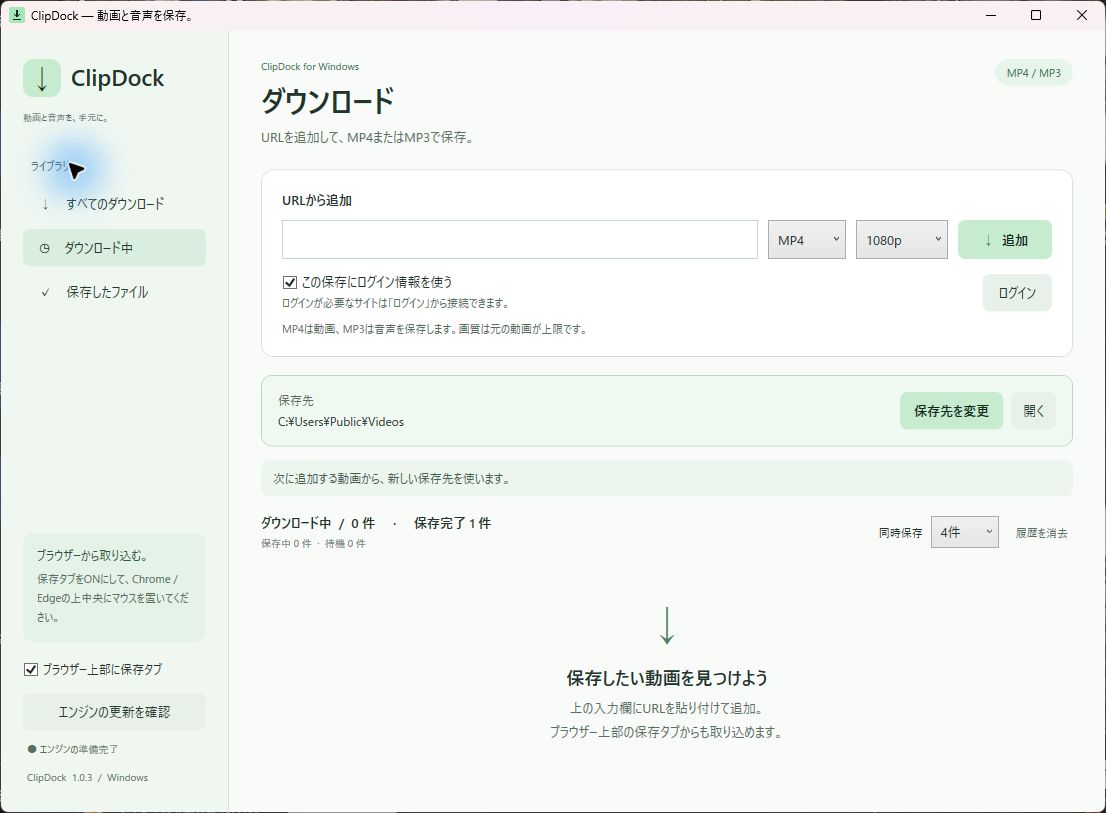
Choose the format, quality and folder
- Set a quality limit
- Choose 480p, 720p, 1080p, 4K or best available for MP4. 4K is a resolution limit; ClipDock does not upscale the source.
- Follow each download
- See download and conversion progress, cancel a job or retry it. The default is two downloads at a time.
- Add a URL
- Paste an HTTP(S) video page or media URL. An optional tab above Chrome or Edge can also try to import the address.
Install ClipDock
Download the installer, close any running copy of ClipDock, and run it. Administrator rights are not required.
Prepare the download engine
Open the app and click 「保存エンジンを準備」 (Prepare download engine). The initial download requires an internet connection.
Paste a URL and save
Paste a video URL into 「URLから追加」, choose MP4 or MP3 and a folder, then click 「追加」 (Add).
Frequently asked questions
- Which videos can I save?
- Supported sites and non-DRM media such as HLS/DASH are handled by the download engine. Site changes and access conditions may prevent a download. Only download media you have the right to save.
- Can it save videos that require a login?
- “Use login information for this download” is on by default. Sign in to the site you want to save from through the app's Login window first. This is separate from existing Chrome or Edge sessions. A site's restrictions or a post's availability may still prevent a download.
- Does choosing 4K improve the source?
- The selected resolution is a limit. If the source is only available at 1080p, choosing 4K still gives you up to 1080p. ClipDock does not upscale it.
- Why does Windows show a warning?
- The current installer has no code signature, so Windows cannot verify its publisher. Check that you downloaded it from this official site. The help page explains how to review the warning.
Windows 10 / 11 (x64) · Free
Version 1.0.3 · The installer is unsigned. Windows may show a security warning.